
GGDrop Withdrawal – Withdraw Your CS2 Skins to Steam
Won a skin and want it in your CS2 inventory? The GGDrop withdrawal system moves eligible CS2 items from your account to Steam through standard trade offers. Before you send a request, your profile has to meet a few simple rules on our side and on Steam’s side. This page explains all of them.
How GGDrop Withdrawals Work
The system connects your on-site inventory with your profile. Everything is simple – you win an item, you claim it, and an offer delivers it. Check out the full path in a nutshell:
- You receive skins from cases, upgrades, battles, or wheel prizes
- Each item lands in your GGDrop inventory and stays there until you decide what to do with it
- You select the skin and confirm the transfer request
- Our bot prepares an offer for your account
- You accept the offer in Steam, and the item appears in your inventory
We never ask you to install extra software or share your password. Your inventory on the site works like a waiting room: keep items there, use them across the GGDrop game modes, or send them out whenever you want.
There is also no limit on how long a skin can wait. Some players move every drop to Steam right away, and others collect items for weeks and transfer them in one session. Both ways work the same, and the choice always stays with you.
Before Withdrawing Your Skins
A few settings decide whether your first GGDrop withdraw request goes through smoothly. Set them up once, and every next transfer takes seconds. Make sure you have:
- An active account. Sign-in on our platform works only through Steam, so the same profile receives your skins
- A valid Trade URL. Our bot needs this link to find your account and send the trade offer to the right place
- Guard Mobile Authenticator. Steam asks for it to confirm trades, and accounts without it face long trade holds
- A public inventory. If your Steam inventory is private, the bot cannot see it and the trade fails
- A positive account standing. Steam bans and trade locks on Valve’s side block all transfers
Each point above comes from how Steam trading works, not from extra rules we invented.
Withdrawing CS2 Skins
Once your items become eligible, the transfer itself is short. You pick a skin, send the request, and confirm one trade offer. The table below shows the four stages:
| Stage | What Happens |
| Select an Item | Pick an eligible skin from your GGDrop inventory |
| Request Withdrawal | Send the transfer request for the chosen item |
| Steam Confirmation | Accept the trade offer in Steam |
| Receive Your Skin | The skin arrives in your Steam inventory |
In practice, the GGDrop withdraw option opens right from your inventory page. Hover over the item, press the button, and watch for the trade offer notification in Steam. Accept it on time, because open offers do not wait forever. After you confirm the trade, the item leaves our system and belongs to your account fully.
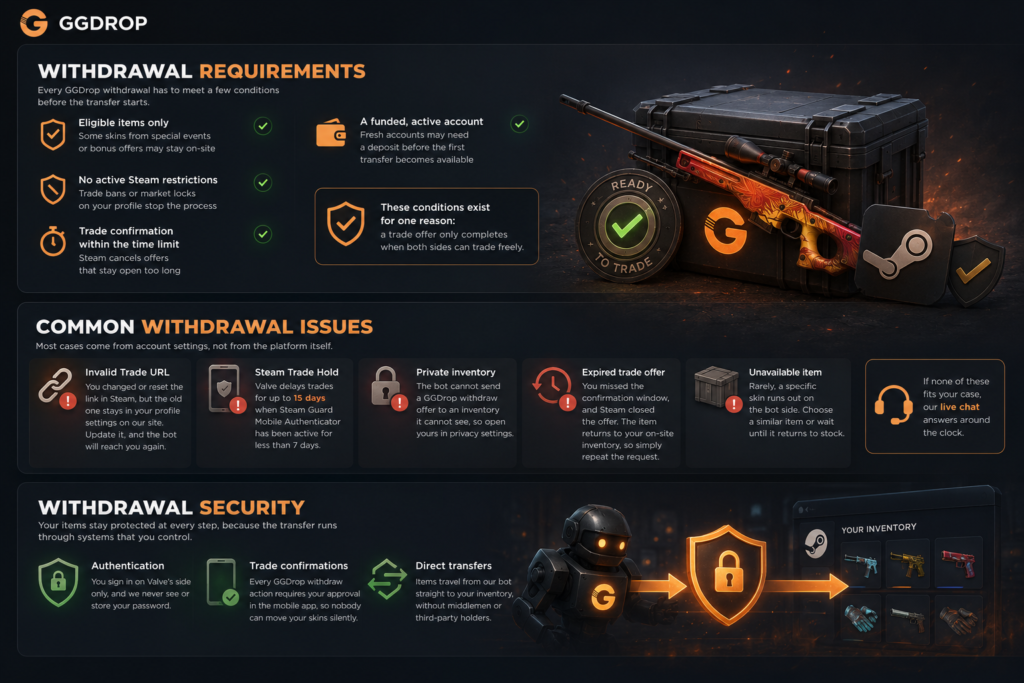
Withdrawal Requirements
Every GGDrop withdrawal has to meet a few conditions before the transfer starts. These rules protect your items and keep every trade clean:
- Eligible items only. Some skins from special events or bonus offers may stay on-site, so look at the item status in your inventory first
- No active Steam restrictions. Trade bans or market locks on your profile stop the process
- Trade confirmation within the time limit. Steam cancels offers that stay open too long
- A funded, active account. Fresh accounts may need a deposit before the first transfer becomes available
These conditions exist for one reason: a trade offer only completes when both sides can trade freely.
Common Withdrawal Issues
Sometimes a transfer stops before the skin reaches Steam. Most cases come from account settings, not from the platform itself. The typical situations look like this:
- Invalid Trade URL. You changed or reset the link in Steam, but the old one stays in your profile settings on our site. Update it, and the bot will reach you again
- Steam Trade Hold. Valve delays trades for up to 15 days when Steam Guard Mobile Authenticator has been active for less than 7 days
- Private inventory. The bot cannot send a GGDrop withdraw offer to an inventory it cannot see, so open yours in privacy settings
- Expired trade offer. You missed the confirmation window, and Steam closed the offer. The item returns to your on-site inventory, so simply repeat the request
- Unavailable item. Rarely, a specific skin runs out on the bot side. Choose a similar item or wait until it returns to stock
If none of these fits your case, our live chat answers around the clock.
Withdrawal Security
Your items stay protected at every step, because the transfer runs through systems that you control. Three layers work together here:
- Authentication. You sign in on Valve’s side only, and we never see or store your password
- Trade confirmations. Every GGDrop withdraw action requires your approval in the mobile app, so nobody can move your skins silently
- Direct transfers. Items travel from our bot straight to your inventory, without middlemen or third-party holders
We also recommend confirming that each trade offer comes from our official bot and lists the exact skin you requested. This simple step will protect you from fake offers outside the platform. In case an offer ever seems strange to you, decline it and ask our support team before you accept anything.
Tips for Faster Withdrawals
Small preparations remove almost every delay. Keep this short list in mind:
- Update your Trade URL right after you reset it in Steam
- Keep Steam Guard Mobile Authenticator active at all times, not only on trade days
- Leave your inventory public before you press the button
- Go over your account settings once before a big GGDrop withdraw, especially after long breaks
Players who follow these four habits usually complete transfers on the first try.